


Updated October 2026 for the WordPress block editor
One of the first things you’ll want to do with your WordPress website is create a new page, then add it to your navigation menu so visitors can find it. Whether you built the site yourself or had a professional build it for you, this is one of the most common tasks you’ll handle.
WordPress has changed a lot since we first wrote this tutorial. Today, pages are built with the block editor, where every paragraph, heading and image is its own “block.” It may look different from what you’re used to, but once you’ve done it a few times, it’s quick and easy.
Step 1: Go to your Pages
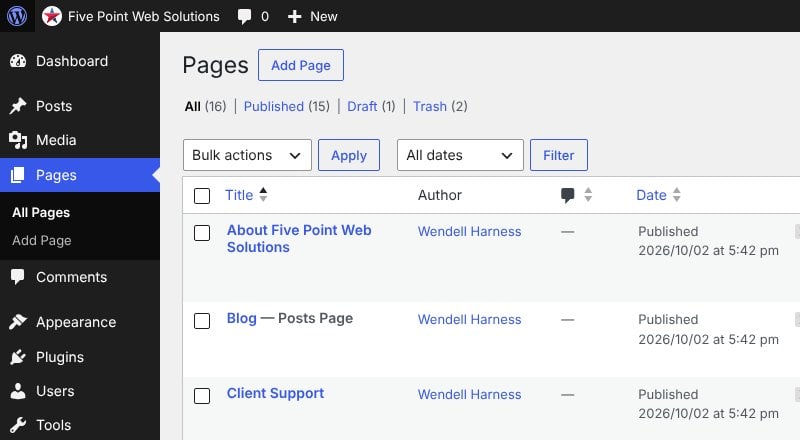
Log in to your WordPress dashboard and click Pages in the left menu. You’ll see a list of every page on your website. Click the Add Page button at the top.
Step 2: Add a title and start writing
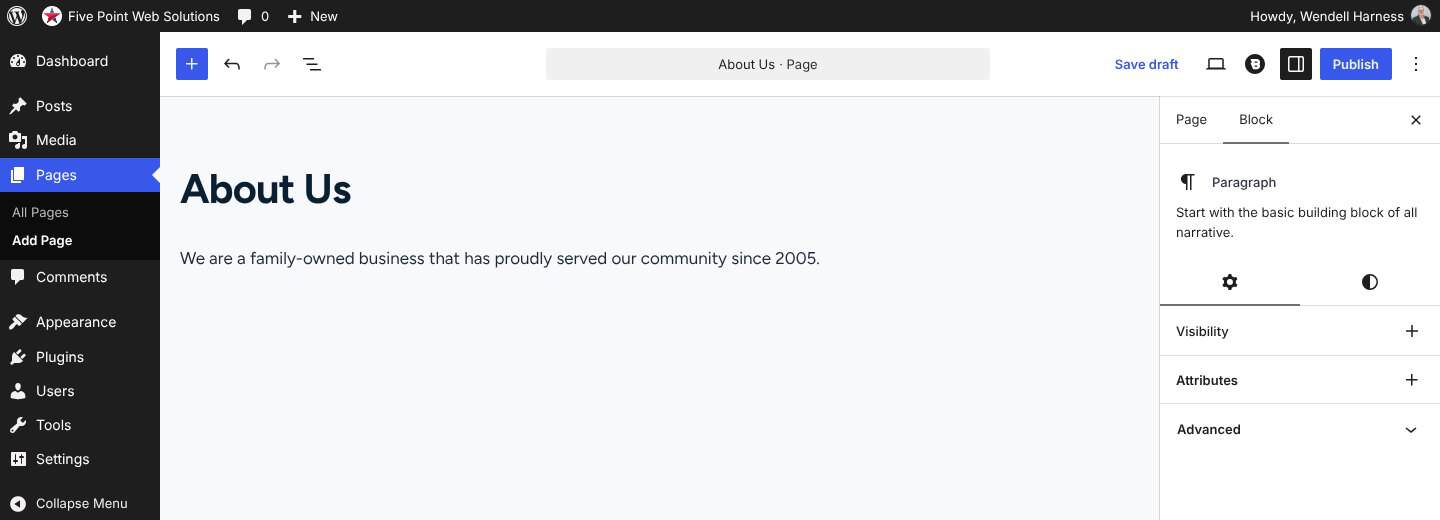
The block editor opens with a blank page. Click where it says Add title and type your page title. Press Enter and you’ll drop into the first paragraph, ready to start writing.
Step 3: Add more content with blocks
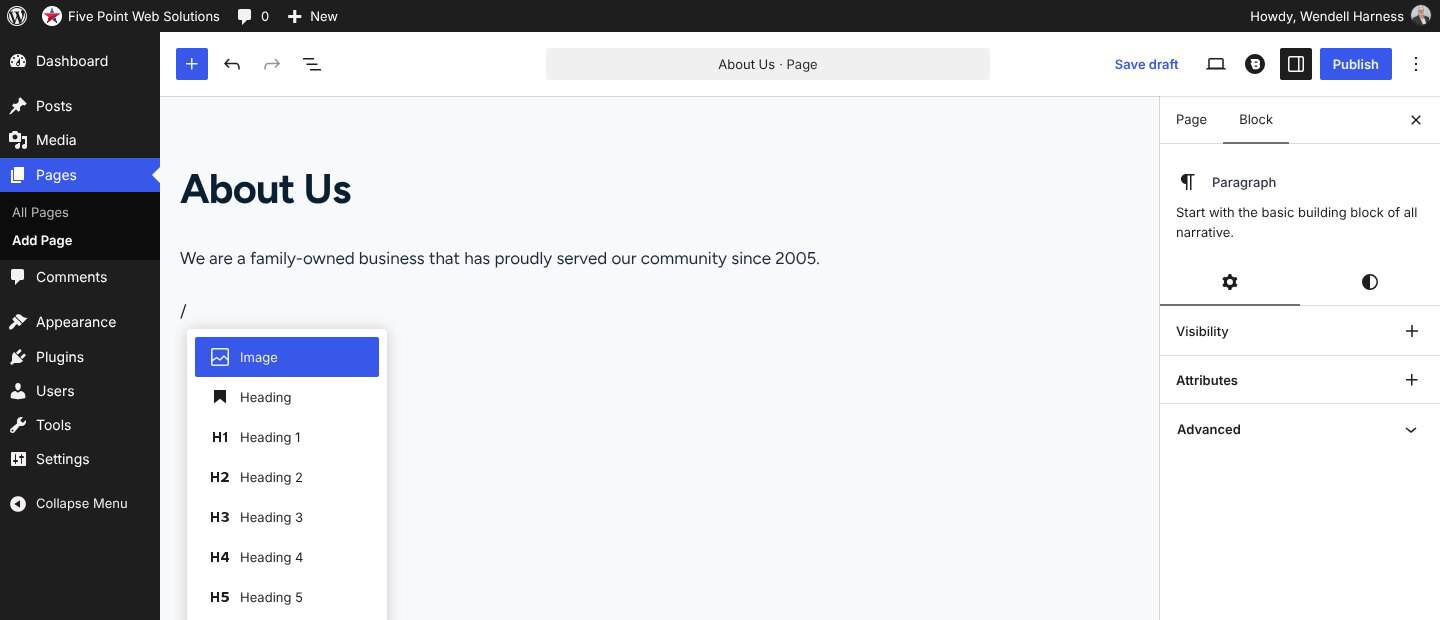
Every time you press Enter, WordPress starts a new paragraph block. To add something other than a paragraph, such as a heading, image, list or button, you have two options:
- Type a forward slash ( / ) on a new line, then start typing the name of the block you want, like “heading” or “image.”
- Click the blue + button in the top-left corner to browse all of the available blocks.
A few tips as you build your page:
- Use headings to break your content into sections. They make the page easier to scan and help search engines understand it.
- When you add an image, fill in the alternative text field with a short description. It helps visitors who use screen readers and gives search engines context.
- Click the Page tab in the right sidebar to change the page’s URL (sometimes called the “slug”), set a featured image or choose a parent page.
Step 4: Publish your page
Before you publish, use the Preview option in the top toolbar to see how the page will look to visitors. When you’re happy with it, click the blue Publish button in the top-right corner. WordPress will show a quick checklist so you can double-check the visibility and timing. Click Publish again to make the page live.
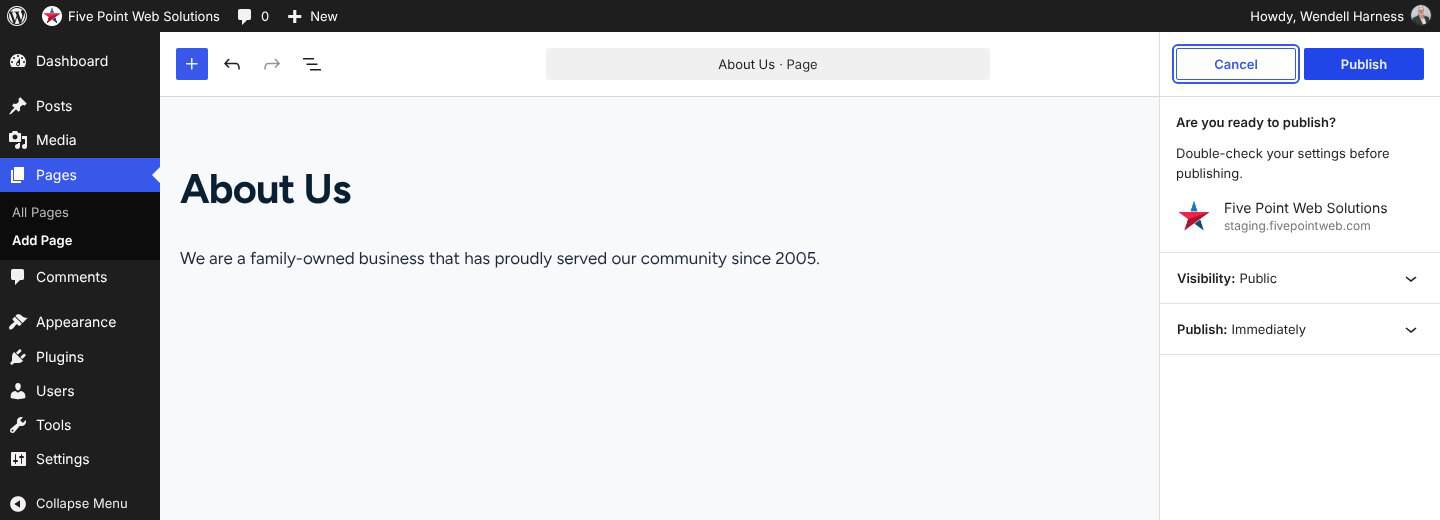
Not ready yet? Click Save draft instead. Drafts are saved for later and aren’t visible to the public.
Step 5: Add the page to your menu
Publishing a page doesn’t always add it to your navigation menu. How you add it depends on the type of WordPress theme your website uses.
If your site uses Appearance → Menus
Many popular themes, including Blocksy, which we use for most of our websites, manage navigation with the classic Menus screen:
- In your dashboard, go to Appearance → Menus.
- At the top, choose the menu you want to edit from the dropdown and click Select.
- In the Pages box on the left, check the box next to your new page (it should be near the top of the Most Recent list), then click Add to Menu.
- Your page appears at the bottom of the menu structure on the right. Drag it to where you want it. To make it a dropdown item under another page, drag it slightly to the right beneath that page.
- Click Save Menu.
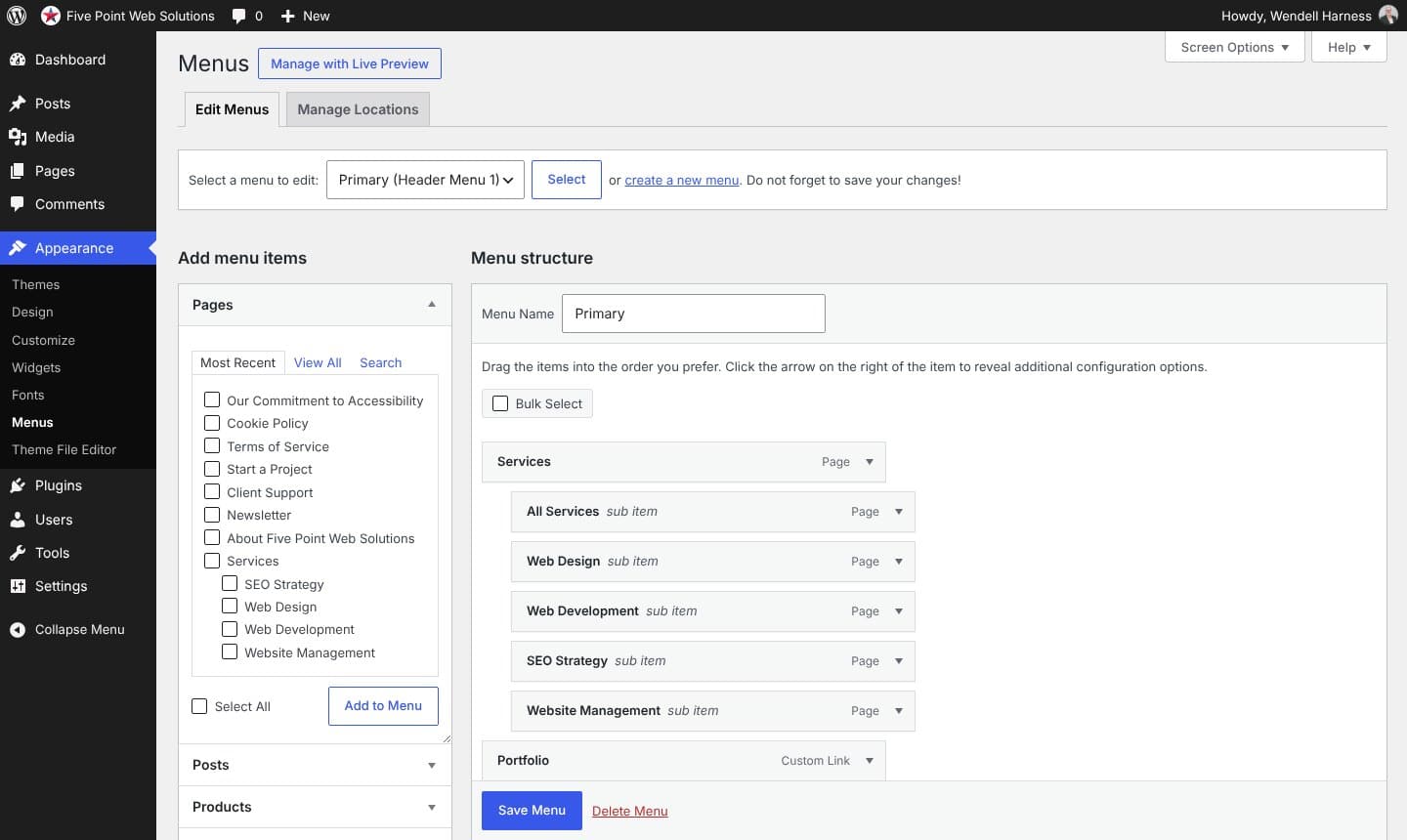
Tip: Choosing a parent page in the page settings changes the page’s URL, but it doesn’t add the page to a dropdown menu. Dropdowns are set up in the menu itself.
If your site uses a block theme
Newer “block themes” handle menus in the Site Editor instead. Go to Appearance → Editor, choose Navigation, and add your page to the menu there. If you don’t see a Menus option under Appearance, your site is likely using a block theme.
Step 6: Check your work
Visit your website and make sure the new page shows up in the menu where you expect it. Be sure to check it on your phone too, since many themes display a different, collapsible menu on smaller screens.
Want us to handle it?
If you’d rather spend your time running your business, we can help. Sites on our Website Management Plan include content updates each month, so adding a new page is as easy as sending us the details. Not on a plan? Send us a message and we’ll be glad to help.


Add your first comment to this post