


Updated October 2026
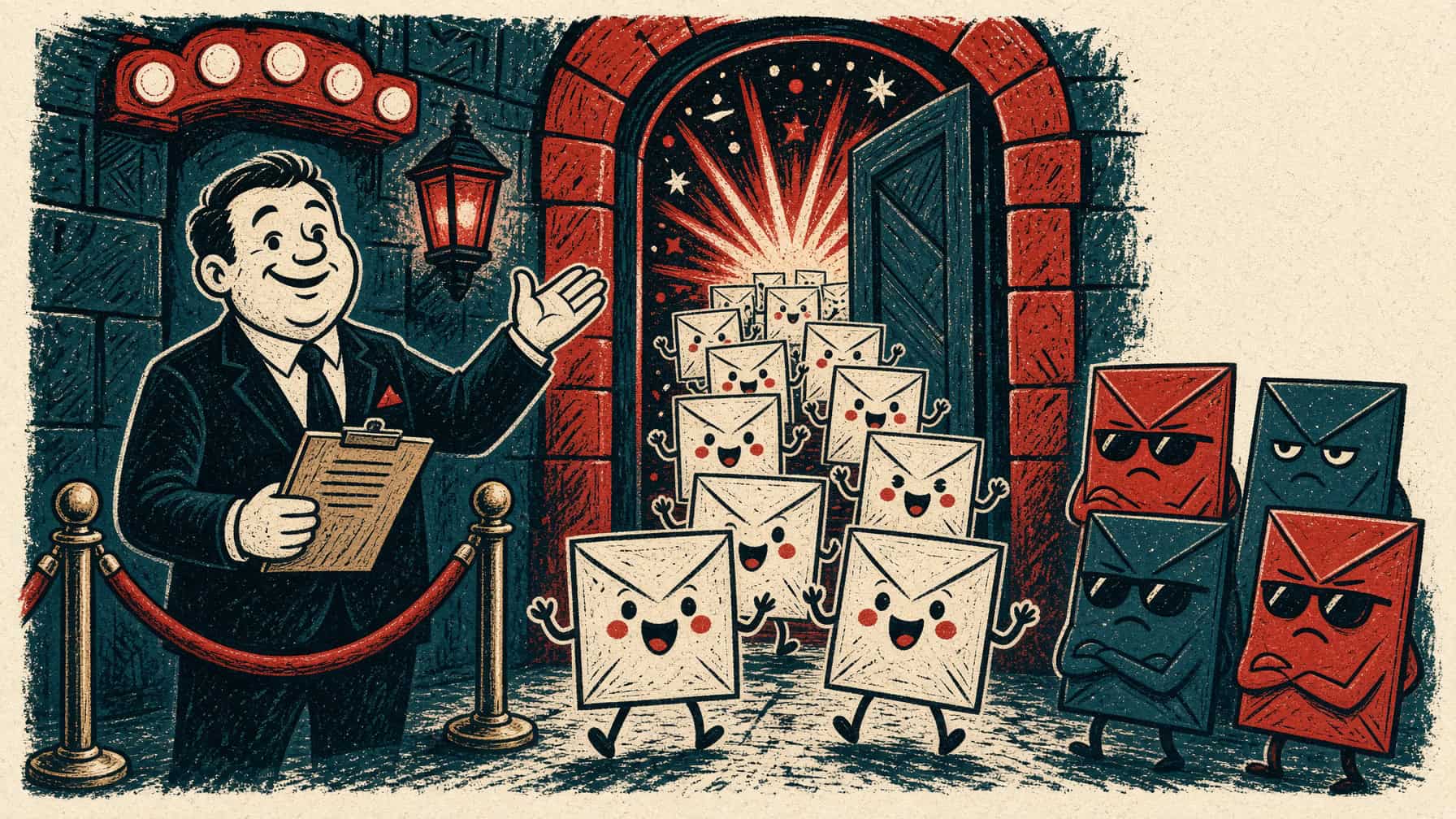
Important emails can end up in your spam or junk folder, even when they come from people you know. That can mean a missed invoice, a quote you never saw or a form submission from a new customer that sat unread for days.
The fix is simple. First, check your spam or junk folder regularly and mark legitimate emails as “not spam.” (Here’s why it’s worth checking your spam folder regularly.) Second, add trusted senders to your contacts or safe senders list. This is called whitelisting, and you may also see it called safelisting or allowlisting. Once a sender is on your list, their messages should go straight to your inbox.
Tip: If your website sends you notifications when someone fills out a form, add the address those notifications come from to your contacts too, so you never miss a new lead.
Below are the steps for the most popular email services and apps. Email providers change their menus from time to time, so if your screen looks a little different, look for options like “Not spam,” “Not junk” or “Add to contacts.”
Jump to: Gmail · Outlook for Windows (classic) · New Outlook, Outlook.com and Outlook on the web · Yahoo Mail · iCloud Mail · Apple Mail on iPhone and iPad · Apple Mail on Mac · Samsung Email · Thunderbird · AOL Mail
Gmail
To add the sender to your contacts:
- Open an email from the sender
- Point your mouse at the sender’s name until a small card pops up
- Click Add to contacts
If the email is in your Spam folder:
- In the left menu, click More, then Spam
- Check the box next to the email
- Click Not spam at the top (or Report not spam if you’ve opened the email)
In the Gmail app on your phone:
- Tap the three lines at the top left, then Spam
- Open the email and tap Report not spam
Outlook for Windows (classic)
If the email is in your Junk Email folder (this also adds the sender to your Safe Senders list):
- Select the email
- On the Home tab, click Junk, then Not Junk
- Leave Always trust email from sender checked and click OK
To add a sender to your Safe Senders list any time:
- Right-click an email from the sender
- Choose Junk, then Never Block Sender
New Outlook, Outlook.com and Outlook on the web
These all work the same way. To add a sender to your Safe Senders list:
- Click Settings (the gear icon), then Mail, then Junk email
- Under Safe senders and domains, click Add safe sender
- Type the email address, press OK, then click Save
If the email is in your Junk Email folder:
- Select the email
- Click Not junk at the top (in some versions it’s under Report)
- If you’re asked whether to report it, choose either option. The email moves to your inbox

Yahoo Mail
To add the sender to your contacts:
- Open the email and point your mouse at the sender’s name
- Click Add to contacts
- Check the details and click Save
If the email is in your Spam folder:
- Open the Spam folder (click More first if you don’t see it)
- Select the email
- Click Not spam
iCloud Mail
On the web at icloud.com/mail, to add the sender to your contacts:
- Open the email
- Click the sender’s name at the top
- Click Add Contact, then Done
If the email is in your Junk folder:
- Click Junk in the sidebar and select the email
- Click Move Message, choose Inbox and click Move (or just drag it to your Inbox)
Apple Mail on iPhone and iPad
To add the sender to your contacts:
- Open the email and tap the sender’s name at the top
- Tap Create New Contact (or Add to Existing Contact), then Done
If the email is in your Junk folder:
- Open the email
- Tap the folder icon and choose Inbox
Apple Mail on Mac
To add the sender to your contacts:
- Point your mouse at the sender’s name in the email and click the small arrow that appears
- Choose Add to Contacts
If the email is in your Junk folder:
- Select the email
- Click Move to Inbox in the banner, or Not Junk in the toolbar

Samsung Email
If the email is in your Spam folder:
- Open the email
- Tap More (three dots) and move the email to your Inbox
To keep it from happening again:
- Tap the three lines at the top, then the Settings gear
- Tap Spam addresses and remove the sender if they’re listed

Thunderbird
To add the sender to your address book:
- Open the email and click the sender’s name
- Choose Add to Address Book
If the email is in your Spam folder (called Junk in older versions):
- Open the email
- Click Not Spam on the bar above the message
To make sure your contacts never get marked as spam:
- Click the menu (three lines), then Account Settings
- Under your email address, choose Spam Settings
- Check your address book under Do not automatically mark mail as spam if the sender is in

AOL Mail
To add the sender to your contacts:
- Open the email and point your mouse at the sender’s name
- Click Add to contacts, then Save
If the email is in your Spam folder:
- Open the Spam folder and select the email
- Click Not Spam
Still going to spam?
- Replying to a sender, or sending them a message first, also helps many email services learn that you trust them.
- If you use a work email account through Microsoft 365 or Google Workspace, your company’s spam settings may override your personal safe senders list. Your IT person or email administrator can add trusted senders for everyone.
- If emails from your own website keep landing in spam, the problem may be how your site sends email. Sites on our Website Management Plan send through a dedicated email delivery service to help prevent that. Contact us if you’d like help.


Add your first comment to this post